


Be sure to do this on the gallery server you just launched, not on your main cloud server.
The Image Gallery
A demonstration of a security flaw, performed in class by one volunteer while the others follow along. If you are not the volunteer, you do not need to do anything on this page (unless you wish to reproduce the demonstration).
On this page
Table of contents
 Legend
Parts of this exercise are annotated with the following icons:
-
 A task you MUST perform to complete the exercise
-
 Optional step that you may perform to make sure that
everything is working correctly, or to set up additional tools that are not required but can
help you
Optional step that you may perform to make sure that
everything is working correctly, or to set up additional tools that are not required but can
help you
-
 Advanced tips on how to go further (or
challenges!)
Advanced tips on how to go further (or
challenges!)
 The end of the exercise
-
 The architecture of the software you ran or
deployed during this exercise
The architecture of the software you ran or
deployed during this exercise
-
 Troubleshooting tips: how to fix common problems you might
encounter
Troubleshooting tips: how to fix common problems you might
encounter
Get your public SSH key
You can display your public SSH key in your terminal with the following command:
$> cat ~/.ssh/id_ed25519.pub
You should copy the output of this command. You will need it later.
Launch a virtual server
You will launch a virtual server to deploy the vulnerable application.
-
Access the Azure portal and go to the Virtual machines section:

-
Create a new virtual machine with these settings, then go to the Disks settings:
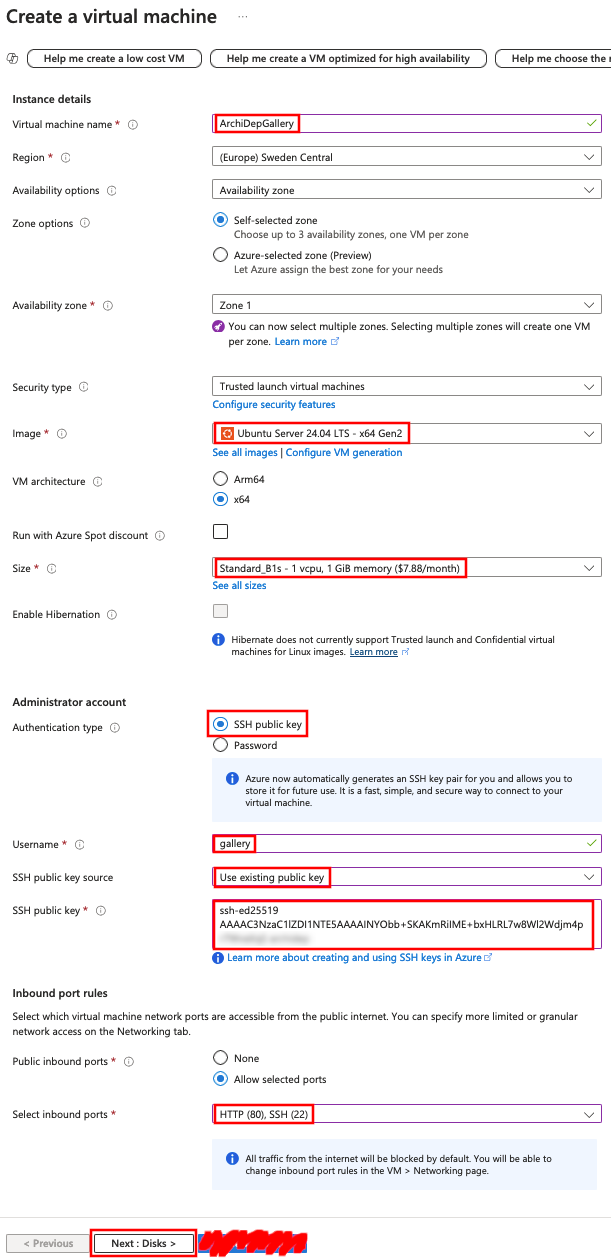
-
Keep the default Disks settings.
Go to the Networking settings:

-
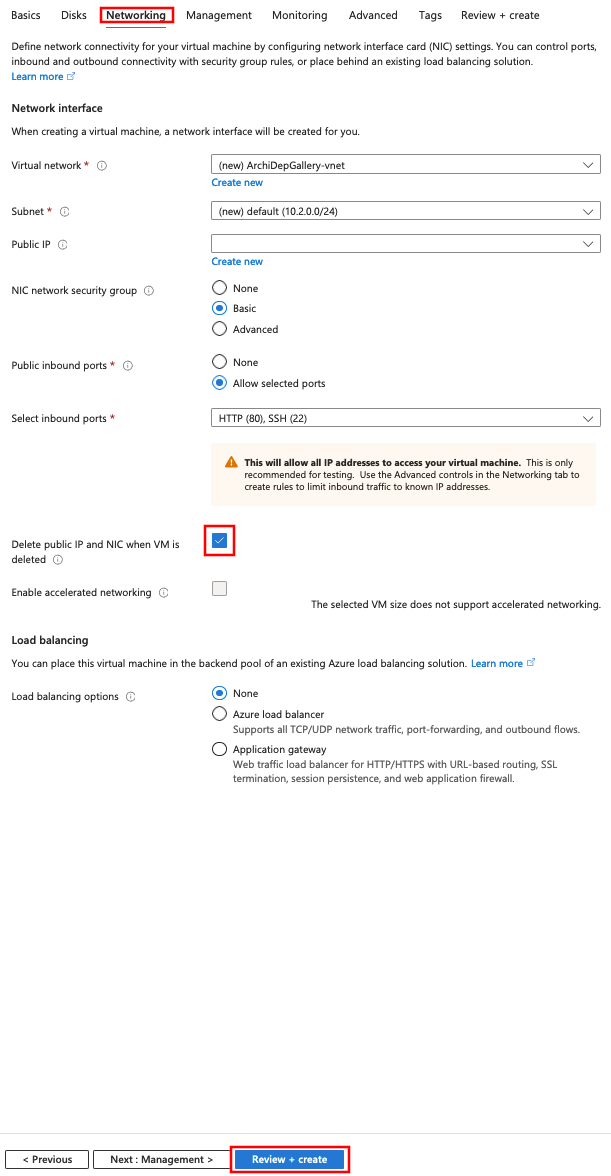
In the Networking settings:
- Make sure inbound ports 22 (SSH) and 80 (HTTP) are open.
- Enable the option to automatically Delete public IP and NIC when VM is deleted.
-
Create the VM.
Set up the image gallery application
Follow the instructions in this repository.
Warning
You can connect to it with ssh gallery@W.X.Y.Z (where W.X.Y.Z is the IP
address of the server, which you can find in the Azure portal).